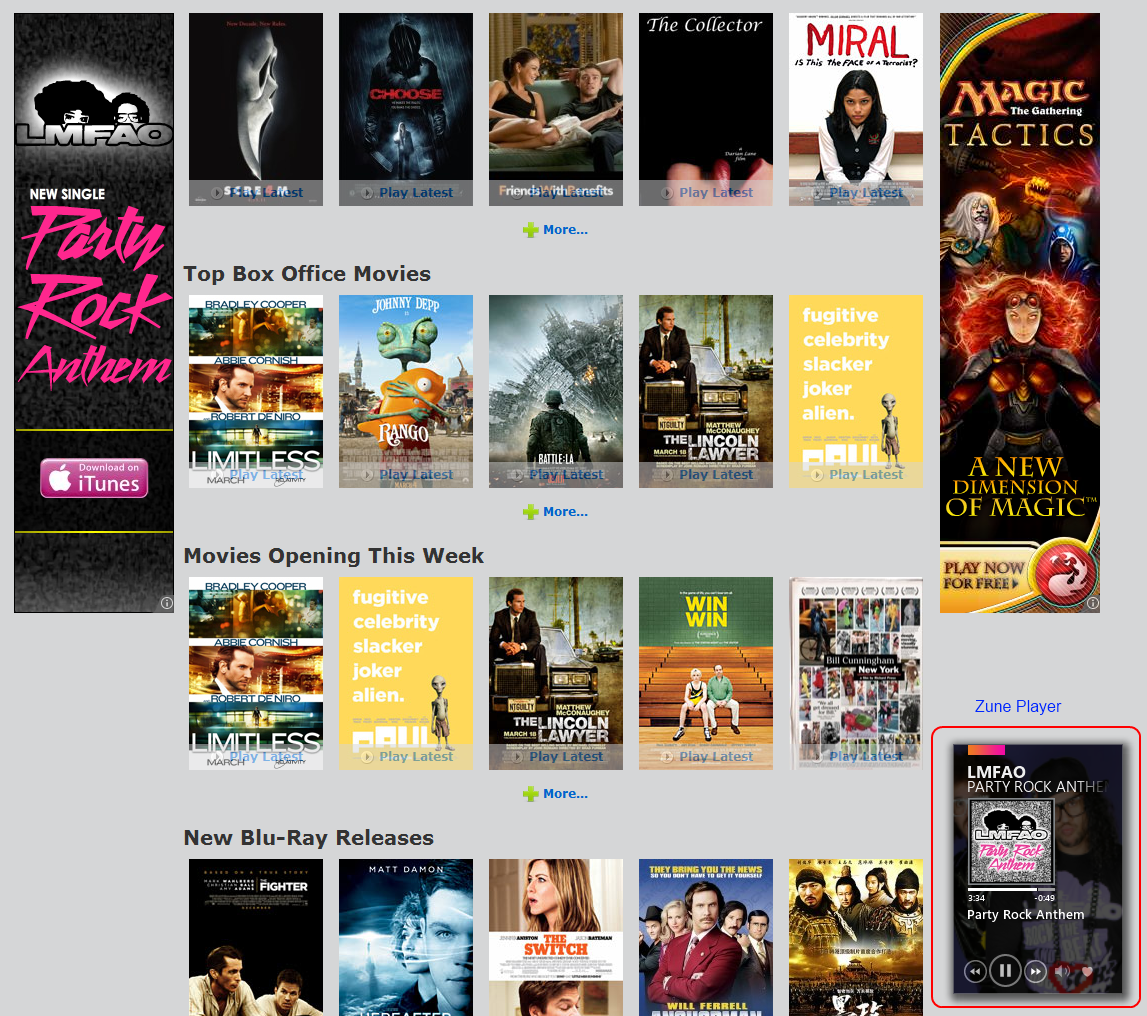
Freaky that Google is advertising the same song I’m currently listening to. I guess I did check out the music video earlier this week.

After eliminating all other possibilities, the one remaining-no matter how unlikely-must be the truth.
Freaky that Google is advertising the same song I’m currently listening to. I guess I did check out the music video earlier this week.
WordPress recently released their JetPack plugin which replaced WordPress.com Stats plugin. After upgrading, things took a bit to update, but most things worked fine afterwards. However, my Popular Posts widget (Most Viewed Posts) remained broken with the error: WordPress.com stats not installed
I was too busy this week to look into the cause of the issue and a quick search online didn’t result in much traction. This weekend, I finally got some time and found this post on WordPress forums: [Hack] How to use Stats Helper beside Jetpack.
Thanks to herophuong’s help, I realized what was causing the issue. The Most Viewed Posts widget is part of the WordPress.com Stats Helper plugin and it was looking up a function that no longer exists. When you installed JetPack, it automatically deactivated WordPress.com Stats. The helper plugin needed the API key in order to query for data.
You can either do what herophuong suggested in his post, but I thought a more elegant solution would be to create a separate plugin that created the function that it was looking for. That way when there are updates to the plugin, it won’t trample over your changes.
All this plugin does is add the missing function stats_get_api_key and return the API key. After you download this plugin, you have to add your API key to the plugin.
You probably have an API key already. There are a couple ways to retrieve it.
You can always go to apikey.wordpress.com to sign up for one if you don’t have one already.
After you download the plugin and obtain your API key, open the included stats-api-key.php and replace ENTER_API_KEY_HERE with your API key. Remember to leave the quotes.
Upload this file to your WordPress plugins directory (usually wp-content/plugins/) and go back to your WordPress Plugins Page, refresh the page if needed, locate the newly added Stats API Key plugin, and activate it.
Your Most Viewed Posts and any other thing that relies on WordPress.com Stats Helper should work now.
A couple things I noticed was it took a couple minutes for it to successfully retrieve the stats. Before it completed that, my most viewed posts widget would show my latest 5 posts. But be patient and it’ll eventually work.
For some time now, I’ve been using Google Voice as my home phone. Recently they have added the feature where you can port your existing mobile number to their service for a $20 fee (blog post). I’ve been contemplating on doing so, but ultimately decided against it because if I ever use my mobile phone to call somebody, the receiver will see a different number on their caller id. I know they now have apps that allow you to use Google Voice on your cell phone, but the features are still limited and I’m waiting to see if any mobile phone service will have some deeper integration with Google Voice so that voice mail and caller id would work correctly. Maybe Google will end up launching their own mobile network.
Currently I have Google Voice setup with Gizmo5 + Linksys PAP2 (ATA) (instructions). However Gizmo5 limits my free outgoing calls to 3 minutes, which is annoying. On the other hand, Google Voice gives me unlimited free outgoing calls in the US/Cananda, but I have to initiate the call from the Google Voice website. Doable for me, but puts a damper in things for my parents.
Awhile back, there was a tutorial on how to setup an Asterisk server which would bypass Gizmo5 and be able to make unlimited outgoing calls through Google Voice: Googlevoice + Asterisk pbx (PiAF) + Free DID from SipGate = Free incoming/outgoing USA VOIP service. The tutorial was a bit complicated and I bookmarked it as a future project to try out. Not long after that, someone posted an easier tutorial which only required a few steps: Google Voice + Asterisk = Free USA VOIP service. I bookmarked it too.
As you probably guess, I haven’t gotten around to trying this project out yet, but the good news is I can have the cake and eat it too!
Today I found out Obihai has released a device known as the OBi110 for $50 (discussion). All you need is a Google Voice account to set the device up. Then you can plug in any phone or hook it up to your entire house for unlimited free incoming/outgoing calls to US/Canada. They also have really good international rates if I recall correctly. They also let you choose any area code (most other services charge a fee for that). There will be no need to purchase a separate ATA device.

With this device and setup, it actually solves a couple issues:
All this for just $50. Unfortunately it’s currently sold out at Amazon, but I’m pretty sure it’ll be back in stock in the near feature. If you can’t wait, you can always order it from 888VoipStore for $10 more for shipping.
More details on Google Voice + OBi: Obihai Announces Support for Google Voice on OBi110

So yesterday my sister sends me a link to Williams Sonoma. Guess what happened over the course of the next 24 hours.


Yep, William Sonoma Google ads plastered everywhere I go.
 So with the heavy rainstorms we’ve been getting these pass few days, I’ve been having quite a few brown outs. Everything’s fine though since my computers are all backed by UPSes. However I do noticed that my HTPC always seems to hibernate whenever these brown outs occur. I checked the battery and it was at 99-100%. So I went into the power settings and noticed that the critical battery level action was set to hibernate and the critical battery level was set to 98%. I tried changing it to 10%, but the setting would revert back to 98% immediately after trying to apply changes.
I did a search and found the following 2 threads:
I tried to do what a few suggested such as changing my group policy for reserve battery notification, changing my permissions settings for power schemes in the registry, and a few others, but they all failed to work. The only thing that worked was running the powercfg.exe tool.
powercfg.exe -setdcvalueindex 8c5e7fda-e8bf-4a96-9a85-a6e23a8c635c e73a048d-bf27-4f12-9731-8b2076e8891f 9a66d8d7-4ff7-4ef9-b5a2-5a326ca2a469 20
The 2 things you need to change are 8c5e7fda-e8bf-4a96-9a85-a6e23a8c635c (power scheme GUID) and 20 (what percentage to set it to). To locate your power scheme GUIDs, open registry editor (regedit.exe) and go to HKEY_LOCAL_MACHINE\SYSTEM\CurrentControlSet\Control\Power\User\PowerSchemes. The keys (i.e. folders) underneath that location are your GUIDs. I believe the GUID above is for the High Performance power scheme.
Here’s the command to set the Balanced power scheme to have a critical battery level of 10%:
powercfg.exe -setdcvalueindex 381b4222-f694-41f0-9685-ff5bb260df2e e73a048d-bf27-4f12-9731-8b2076e8891f 9a66d8d7-4ff7-4ef9-b5a2-5a326ca2a469 10
For the past few days, Echofon for Firefox on my main desktop started acting funning, popping up an error dialog every second: Authentication failed. Incorrect signature
The only way to actually use Firefox was to quickly log off Twitter in between those error dialogs.
My laptop which also had Echofon did not experience this issue, so it doesn’t appear to be account related nor a global problem. I decided I would try to resolve the issue when I got home.
When I got home, I tried removing and re-adding my Twitter accounts from Echofon, revoking the OAuth access on Twitter’s website, and even clearing my cache and cookies without any success. Those darn annoying error dialogs always came back. A quick search online didn’t result in any quick solution either. Most people saw this error on their iPhone/iPad and associated it with some timing/clock issue. There were a few tweets that said they had the same issue on Firefox, but resolved it by removing and re-adding the account.
As a last measure, I decided to uninstall the addon and re-install it. Apparently that fixed it. Not sure if this solution will work for everyone, but worth a try.
Update: I believe I’ve found the culprit. This has to do with https. I was using HTTPS-Everywhere and the fact that HTTPS-Everywhere was enabled, but Echofon was told not to use SSL for Twitter made things go wacky. Go into Echofon preferences and enable “Use SSL for all requests”. Afterwards, I still had to uninstall and re-install the add-on for the error messages to go away. Maybe restarting Firefox would’ve worked too. Ben has confirmed below in the comments that you’ll just need to restart Firefox and the issue should go away. For folks hitting this issue, give it a try and let me know if it worked for you.
 So recently there’s been a lot of news about Firesheep and how people are using it to steal your cookies through unsecured wireless connections. Then they created a tool for detecting if you’re being hacked by Firesheep called BlackSheep. All interesting stuff in which to show you that you should really be careful when accessing sensitive data over an unsecured wireless connection.
Today I was reading the following Ars Technica article: Researcher: free WiFi should use “free” password to protect users which talks about how Hong Kong government has started password protecting their free public WiFi access points. What they do is they still have unsecured wireless points, but when connected to that, all it tells you is to reconnect to a different secured WiFi access point with the given password. I was wondering if everyone has the password to this wireless access point, wouldn’t it have the same issue where people can steal your data? From the article:
“What is the value of a password if it is a ‘well-known secret?’ WPA2 negotiates unique encryption keys with every computer that connects to it,” Wisniewski wrote in a blog post. “This means you and I cannot spy on one another’s traffic even when sharing access on the same access point.”
That got me thinking why not amend the WiFi standard so it can support negotiating unique encryption keys even over unsecured connections. That way even if the initial handshake isn’t secure, anything afterwards would be.
Near the end of the article, it pointed to a BoingBoing post: Password Doesn’t Shear Firesheep. It basically states that because the password is commonly shared, anyone can sniff the packet that contains the unique encryption key that was generated. Instead he suggests using 802.1X with a shared username/password (e.g. WPA/WPA2 Enterprise + PEAP), which will protect the keying process from outsiders. However, someone has already pointed out that approach has a vulnerability called Hole196.
I haven’t gone too deep into finding out how the keying process works, but wouldn’t it be possible to provide a public key to the access point during the original handshake, in which they’ll reply with your unique key encrypted with your public key. That way, only people with access to your private key would be able to decrypt that package and get access to the unique key.
Crazy world we live in huh?
Firesheep image courtesy of =MixedMilkChOcOlate

So when the new WiFi only Kindle was announced for $140, I knew I had to get one. I’ve been wanting to get back into reading for some time. The last 2 fiction books I read were by Ursula Le Guin (Earthsea) and I had a lot of fun. I found out that I really missed my imagination.
The WiFi only edition was sold out really quickly when it was first introduced, but I was allowed to place a back-order. After announcing on Facebook that I was going to get a Kindle, several people had recommended I get the Nook instead because it supported the ePub format which apparently many libraries uses. Wikipedia has a good chart on what formats are supported by different e-Readers.
After looking at the nook and researching on possible workarounds for getting the Kindle to work with other formats, I opted for the Kindle. The Kindle has 3x the battery life and weighs 28% less while maintaining the same sized screen. Maybe the next generation Nook would be better, but at $140, I decided not to wait.
Amazon has this conversion service where you can email documents to a special email address specifically assigned to your Kindle and it’ll convert to a format that your Kindle can consume. When I was first reading about it, it looked like they charged a small fee for this service. Later I found out that it only costs money if you get the document over 3G. It’s free via WiFi and I have a WiFi only model.
The Kindle store has its own Free Books Collections, starting with conversions of popular classics to limited time promotional offers. It also points you to other popular sites to get free books such as Internet Archive, Open Library, Project Gutenberg, and ManyBooks.net.
Initially I was adding free books like crazy to my Kindle, but then I just ended up removing most of them as they just added a lot of clutter.
So I’ve been asking around for book recommendations. Matt recently asked a very similar question on Twitter and I piggy-backed on some of the replies he got. I also got some recommendations from Jeremy. So far I have:
I also added The Way of Kings and Warbreaker by Brandon Sanderson to my list. While looking up on Warbreaker, I found out that he was actually giving away the digital copy of the book on his website: WARBREAKER Rights and Downloads. I was reading up on his experiment with this book and it was rather interesting what he did.
One thing neat about the Kindle store is that you can sample books before deciding on purchasing. Pretty much withing seconds after clicking on the sample button, it’s already on my Kindle. It’s that simple. I was surprised the sample actually contains ~20% of the book. I guess if you’ve invested your time reading ~20% of the book, you’re pretty much going to get the book.
I had gotten my library card for the King County Library System not too long ago and decided to check out how their eBook system worked. The Overdrive system allows you to download books in 2 formats: PDF or Mobipocket. Unfortunately the Kindle doesn’t support PDFs with DRM, but as I was reading up on Mobipocket, apparently Amazon’s proprietary azw format is a derivative of prc (Mobipocket). In fact, you can generate a Mobipocket PID base off your Kindle’s serial number.
Searching online, I had found this blog post: Mobipocket books on Kindle, which provided scripts on how to find out your Mobipocket PID as well as convert the prc to azw format. Reading the comments, someone decided to build a GUI around this: MobiKindle, which works rather well. My only complaint is that it requires me to enter my Kindle serial number every time I restart the application.
Now I can check-out eBooks from the library and read them on my Kindle.
Do note, this software will NOT remove the DRM. It’s just taking advantage of the fact that Amazon’s azw format is essential Mobipocket’s prc format with a bit flipped somewhere.
Most places that talk about the Kindle also refer to this Calibre software, which is sort of like a eBook library management application. It contains several built-in converters, connects directly to your e-Reader device, and even talks to Amazon’s email conversion service. It makes it easy for me to back up eBooks and copy them around if needed.
I’ve tried converting several PDFs through Calibre and it does a decent job, but the formatting is usually messed up. I haven’t really tried converting other document types. Calibre also doesn’t handle DRM protected eBooks.
One of the books I checked out from the library didn’t list the author and I’m somewhat OCD about things like this. So I decided to figure out how to fix that. I thought Calibre would be able to do it since I can actually modify metadata in its library. For some reason I couldn’t get it to work on the azw file I generated. Maybe because it’s DRM protected?
Searching online, I found this application called Mobi2Mobi, which seemed to do what I wanted:
Mobi2mobi is particularly useful in fixing the missing or incorrect Metadata. It may be used on DRM’d ebooks converted using Kindlefix which sometimes causes the metadata to get mangled or on books you’ve downloaded directly from Amazon. It can also be used manipulate the metadata to display in a different way (author “lastname, firstname” or for book organization).
There have been several very long New York Times pieces I’ve been meaning to read and I thought it might be worth it to see if I could get them onto the Kindle. The process would be to print the document to PDF and send it to Amazon’s conversion service.
I use PrimoPDF as my PDF printer and it allows me to print to a custom paper size. I’ve found that 90mm x 110mm works really well with the Kindle display. I also disabled headers/footers as it added unnecessary junk to every page.
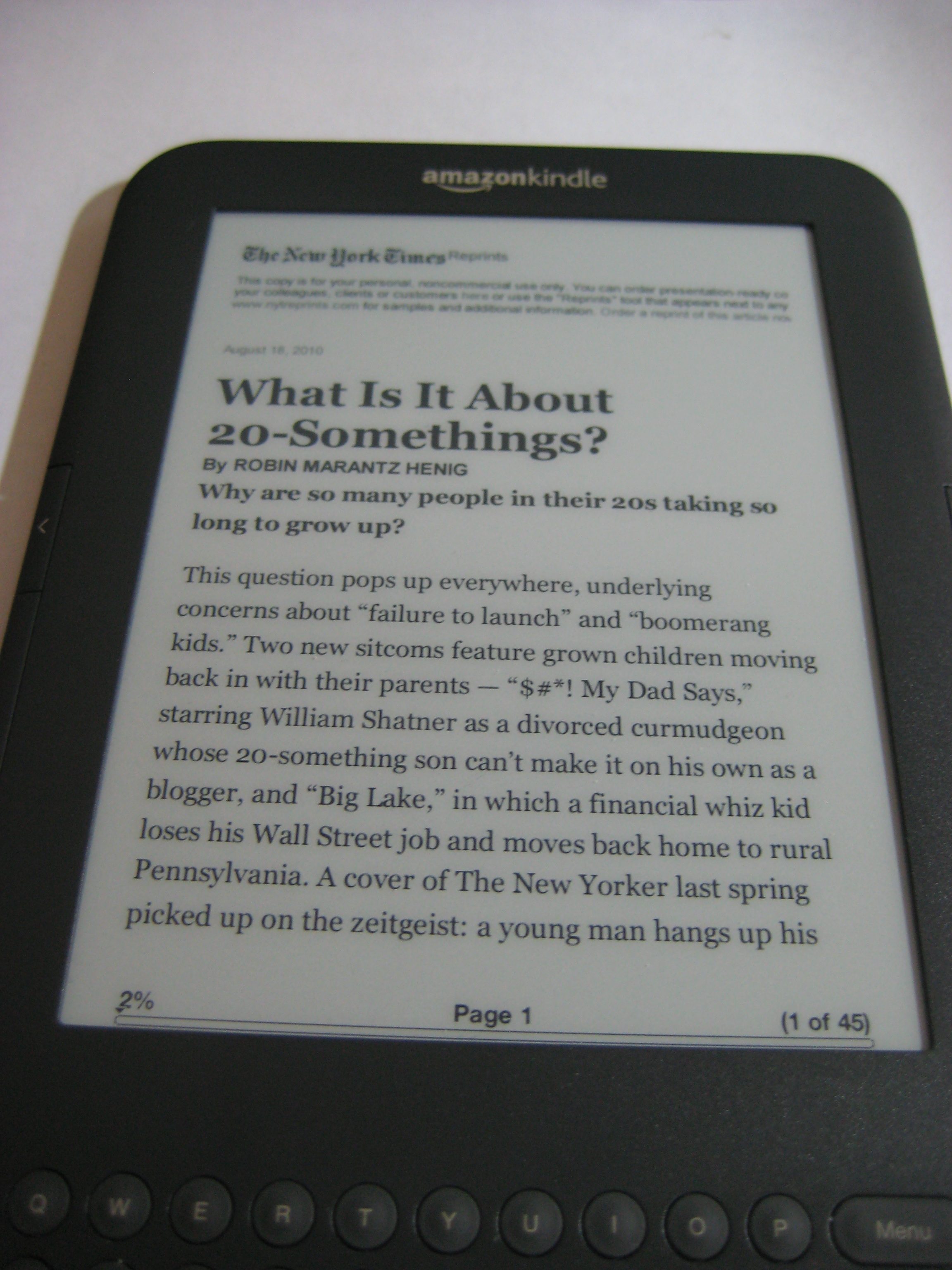
There’s probably a better way to do this, but for now this works for me.
So far I’ve only spent a couple hours reading on the Kindle and I really like it. It’s light and easy on the eye.
I did find the page forward/back buttons a bit unintuitive initially. I kept hitting the big left button to go back, but it was really just another forward button. The back button is the little button above the big forward button. However I’m guessing this would become more natural as I use it more.
All in all, I’m having a lot of fun using it and at the end of the day, that’s really what counts.
 So as I mentioned one of my hdds failed in my RAID5 array. I’ve got to say the quality of this batch of Seagate hdds (Barracuda 7200.7 160GB) were pretty flaky. One died early on in the process (had it RMAed) and the remaining 2 that are still working pass the scan test really slowly.
I decided it’d be fun to see if this hdd was still under warranty. When I couldn’t lookup the warranty status via Seagate’s website, I shot them an email. Their reply:
Unfortunately, it looks like your drive is outside the warranty period.
Serial 4MT0****
Model Number ST3160827AS-RK
Part Number 9W2984-557
Warranty Status Out of Warranty
Warranty End Date 06/10/2010
I swear they time these things. ;p
Then again, do I really have a need for another spare 160GB hdd?