
Windows Home Server

Windows Home Server

So I finally got around to upgrading my second file server. I had upgraded my Linux file server from 6x500GB to 6x1TB (RAID5) when Windows 7 got released. I remember taking 2 of the 500GBs and using them in my main desktop (RAID0). However, I had a 2nd file server (original file server before I built the Linux one). The 2nd file server was running Windows Server 2003 and had 4x160GB (RAID5).

Jeremy had asked if I had any spare hdds because he needed one to diagnose his computer issues. I did have the 4 spare 500GBs, but I figured I could probably swap them out from my Windows file server and give Jeremy a 160GB instead. So the first thing I had to do was to copy all the files off the old file server (there was about 400GB worth of data and my Linux file server had about 600GB of free space). While copying the files, my Windows RAID5 array fails. I decided to run it in degraded mode and just copy the remaining files. I was glad the attempt was successful.

So I’ve been meaning to upgrade to Windows Home Server for some time since I’ve heard there were some good user experiences with computer backups and media center. I got my copy off MSDN and began installing it. I was shocked when after the 1st reboot, it showed that it was booting/installing Windows Server 2003. I found out later that Windows Home Server was built on top of Windows Server 2003. I had always assumed it was built on top of Windows Server 2008 for some reason.

Do note this is a pretty slow machine (AMD Athlon XP 2400+ with like 1GB of RAM), so the OS installation took some time. Everything went through pretty smoothly, but I had some questions about setting it up. Thanks to Matt for providing some tips on how to use it. I wasn’t sure what anti-virus/malware software I should use. Microsoft Security Essentials doesn’t run on Windows Server and there’s no free version of AV software that runs on Windows Server either. A search online had people recommending avast! Windows Home Server Edition, but I decided to run it without anti-virus protection for now since people wouldn’t t be using the machine directly.

I also wasn’t sure if I should be adding the hdds as Storage or Backup drives. I had enabled duplication on certain folders, but Matt confirmed that the Storage drive option is what I want for everything. Duplication will still occur. Backup drives are apparently for a different purpose. And there’s no need to RAID these hdds and you only need to backup what you really care about. Even though Windows sees them as separate hdds, to the user it’s treated as 1 giant partition as Windows does all the magic behind the scenes, so there’s no hassle of trying to decide which drive to put what.

Another good thing about Windows Home Server is that there is no complicated process if you want to upgrade the hdds. It uses everything you can throw at it, including external drives. Though I did read somewhere that you probably want to wait a day or 2 between drive upgrades to allow all the duplication to occur correctly.

Now it comes to the fun part!

Backups

Windows Home Server comes with a client connection software, which registers your machine with Windows Home Server and it’ll automatically backup your machine during the specified time. You can configure it to ignore particular folders and it already has a default set of files/folders to ignore. It even has the ability to wake up the machine for backup purposes if the machine is asleep. By default it keeps the last 3 daily backups, the last 3 weekly backups, and the last 3 monthly backups.

Sharing Media Files

Any computer that registers with with the server automatically adds a certain set of shared folders (e.g. Photos, Music, Videos, etc.) to its library, making sharing media content extremely easy. Previously you would have to manually map network shares and so on.

Media Center Integration

There’s even media center integration which allows you to not only view TV recordings that are on the server, but also automatically archive (compression optional) to the media server, which I found really spiffy.

All in all, I’m really happy with Windows Home Server.

Artificial Memory

In this day and age where everyone is carrying around a cellphone/organizer, it feels like people have offloaded the responsibility of memorizing data onto devices, which may indeed be the correct evolutionary approach. Our lives are so intertwined with digital technology that many of us won’t know what to do without it.

Have you ever forgotten your own cell phone number even if momentarily when inquired by a person or an application? I’m always surprised at how easily I forget my own cell phone number. How does that even happen? Yet for some reason I can still remember my old home phone number which I have not used for over 5 or 6 years. In fact that number is no longer in service. When I was in elementary school, we didn’t have cell phones, so I jotted down friends’ phone numbers in a little notepad. But after awhile, you basically remember all your friends’ phone numbers where you don’t even have to look at your notepad anymore. Nowadays, I can’t even remember my own parents’ cell phone number. Honestly if I lost my cell phone or if it’s out of battery, I wouldn’t really know a number I could call. 911? The fact is we no longer see the number. We call people by looking up their names. When a call comes in, you don’t see a number, you see their name. In fact if I see #s (meaning my phone doesn’t recognize it), I automatically send it to voicemail. The only time I actually use my cell phone # is when I’m giving it to someone, and when you don’t do that often enough, you end up forgetting it.

Then there’s the problem with sense of direction and just a general idea of where things are located. Maybe this is just my problem. I’ve been in the Seattle area for over 5 years and for the 1st 4, I had no idea where anything was in Seattle, thanks to my GPS. Did you know until I stopped using my GPS, I never knew how to get to Andrew’s place w/o it, even though I’ve gone to his place probably 5 or 6x before then. About a year ago, I decided I really wanted to know where things were. Fremont, Capitol Hill, Belltown, Ballard – these were all things that existed in Seattle, but I had no idea how they connected to each other or how to get from 1 to the other. I don’t recall the last time I took out my GPS, but it’s only around in case I get lost. Nowadays I draw little maps on post-it notes and it’s been working wonders. I now know street names, landmarks to remember, and I hardly ever have to look up how to get to the same place twice.

And of course there’s birthdays, anniversaries, and so on. I doubt I can remember people’s birthdays these days without Outlook and Facebook. Heck, I sometimes forget even my own.

Whistle – Free Phone Calls

Whistle I first read about Whistle on SlickDeals: Free Inbound/outbound Calling No Server required and what intrigued me was the fact it works with Google Voice as well as SIP capable ATA devices. There’s also the fact that it works on your iPhone and iPod Touch, but I currently own neither.

Whistle – Free Phone Calls to Anyone in the U.S.

I’ve been using Google Voice + Gizmo5 + ATA for almost a year and it’s been working great. The only downside is that outgoing calls are limited to 3 minutes. However if you initiate the outgoing call from Google Voice, it’s unlimited.

My Linksys PAP2 comes with 2 lines which means I can setup 2 separate SIP accounts, so I decided to give this a try. Creating a new account actually requires downloading their software. Installation was pretty simple, though their software was pretty much a very simple SIP client. The SD thread also links to a tutorial on how to set up your ATA: Use Whistle Phone on any SIP device – Make free VoIP calls to USA [Tutorial]

The only changes I needed to make was the following:

Proxy: proxy.whistlephone.com
Outbound Proxy: proxy.whistlephone.com
Use Outbound Proxy: yes
Use OB Proxy In Dialog: yes
Register: yes

User ID: (10 digit phone # – no dashes)
Password: (your account password)
Auth ID: (10 digit phone # – no dashes)
Use Auth ID: yes

I also learnt a bit on how to define ATA dial plans. Here’s what I ended up with:
(1[2-9]xx[2-9]xxxxxxS0 | <:1>[2-9]xx[2-9]xxxxxxS0 | <:1425>[2-9]xxxxxxS6)
Which made me realized that neither area codes nor prefixes can ever begin with 1.

Gave it a test run and found out I had to disable my STUN Server. Never quite knew what the STUN Server did, but when setting up Gizmo5, the tutorial stated I should enable it. I disabled it and my Gizmo5 account was still able to receive and make calls. With the STUN Server disabled, I was also able to make calls using my new Whistle account.

As noted on the thread and site, you’re required to listen to 15 seconds of ads before your outgoing call is made, but there’s no restriction on how long the call is as long as it’s within the U.S. They do have international plans, but I have no idea if it’s a good deal or not. I made about 5 test calls and only the 1st one required me to listen to an ad. I’m not sure if it’s because I hung up pretty much immediately after calling my cell phone. Definitely worth playing with. There’s no ad requirement for incoming calls.

If you don’t have an ATA device, you can always hook up a microphone to your computer.

Outlook 2010 and IMAP

Office 2010 Logo

I recently upgraded to Office 2010. Apparently they’ve dropped the Ultimate edition and now the best one out there is the Professional Plus edition. Also unlike its predecessor, any better edition is now a superset of the lower edition. For more information, you should check out the comparison chart on Wikipedia.

I’ve been using Outlook 2010 at work and I love the new UI. It does take a bit to figure out where stuff are. Who knew that all the important settings stuff was stuck inside the orange “File” button. Took me forever to find how to change my settings. But once you have a sense of where things are and your settings are what you want them to be, it’s rather neat!

Anyway, as I mentioned I upgraded to Office 2010 a few days ago on my home PC. At home, I have 5 IMAP accounts. I previously only had 2, but then I added 3 GMail accounts (1 personal, 2 for HDTN). And one thing I always hated about IMAP is deleting emails. IMAP has a weird protocol that marks emails for deletion and requires you to purge them. How Outlook deals with that is by striking a line through that email. And to manually purge your emails, there is no simple shortcut key. You had to navigate through the file menu. It basically resulted to alt+e+g+a (taught to me by Derek).

Now that the ribbon has replaced the file menu, the new convoluted shortcut key is alt+o+r+g+a. At least it spells something that I can easily remember.

However later on, I found a new feature that Outlook 2010 has for deleting IMAP emails. You can now tell Outlook to move your email to a specified folder when you delete (i.e. Deleted Items folder). Another really neat thing about moving emails in Outlook 2010 in IMAP accounts is that it no longer just strikes a line through the old copy. After it’s done copying the email to the new location, it actually marks it for deletion and purges it, like what you would expect moving emails/files to do.

To access this setting:

  1. Click on the orange File button on the upper left-hand corner
  2. Open Account Settings
  3. Double click on the account you want to change
  4. Click on More Settings
  5. Select the Deleted Items tab
  6. Select the 1st option: Move deleted items to the following folder on the server: and select which folder to move it to. If you don’t have an existing folder you’d like to use, you can create a new one on the spot.
  7. Save all your settings
  8. Enjoy!

Being Gouged for Laptop Repair

Side note: I’m in the middle of typing up my “essay” for Jeremy and Janine’s wedding experience and that thing is huge. I should probably shorten it given I have like 10-15 headings already. But that essay will be posted eventually. I should probably upload the remainder of my photos too.

My aunt heard I was coming back to visit and asked my mom if I could take a look at her laptop to see what’s wrong. The computer repair shop quoted her $400+ for the parts/labor to fix her issue. My mom asked if I could help and I said I couldn’t make any promises (either time-wise or the ability to fix the issue).

She dropped by yesterday with the laptop. I tried to boot the computer, but the battery appeared completely drained. I plugged in the power adapter and it would appear to boot up, but nothing would show on the screen. I would hear the hard drive click several times and the computer would shut off.

I unscrewed the panels on the back where the hard drive and memory were located and noticed the memory were not seated correctly. I reinserted the RAM and booted up the machine and everything was working fine. It booted into Windows 7 with no problems. Apparently that was all the issue was.

Now I’m curious, did the repair shop purposely unseat the RAM? I asked what the issue was before they took the computer into the repair shop and she said the computer wouldn’t turn on. Upon further inquiry, she meant nothing showed up on the screen. I’m still not sure how RAM can be loosened like that unless done on purpose. Even if someone dropped the computer, I’m not sure RAM can be loosened and there were no signs that the laptop was ever dropped.

I’m still shocked at the computer repair shop for quoting a $400+ repair bill. Either they’re super incompetent, or they’re just ripping off unknowing customers (I’m guessing it’s more of the latter). If I knew which computer repair shop she took it to, I’d warn you guys, but unfortunately I don’t have that information.

Locking Down Facebook

evil facebook For the past few weeks, I’ve been slowly locking down Facebook, altering privacy settings, removing data I once thought it was fun to share, and removing applications which I no longer use. If I could, I would delete my Facebook account altogether, but I’ve become dependent on it to keep in touch with friends who I would never keep in contact with otherwise.
You may also noticed I’ve been using Twitter a lot less this past week. Initially I thought of using Twitter to post random crap which I used to post on my blog. Now that I think about it, do I really care about random people reading my crap, which ends up as spam on my friends’ feeds. I also thought about making my Twitter account protected, but then what’s the point of Twitter since a protected account serves basically the same function as Facebook. Plus Facebook gives you more characters and control! I’ll still be using Twitter to promote my HD-Trailers.net website (hdtrailers), but that’s really the only benefit of Twitter that I see at this point. I guess the one good thing that came out of Twitter so far is that I met some new friends.

Friend Lists

One thing new about Facebook that I found out recently is that you can create friend lists. Friend lists are especially useful when you want to post something to share with your friends, that you might not exactly want your boss or co-workers to know. Mashable has a pretty good tutorial on how to create such a list: HOW TO: Create Friend Lists on Facebook. Now when you post new things on Facebook, you’ll notice the little lock icon near the bottom right of the input area, and that lets you control who gets to see what you’re about to post.

Privacy

Privacy settings are one of the newer things that Facebook has added (due to backlash from the community) and I have to say they’ve done a pretty good job. I’d like more control, but for what they have, it’s not bad. To get access to your privacy settings, near the upper-right corner, click on Account, followed by Privacy Settings.

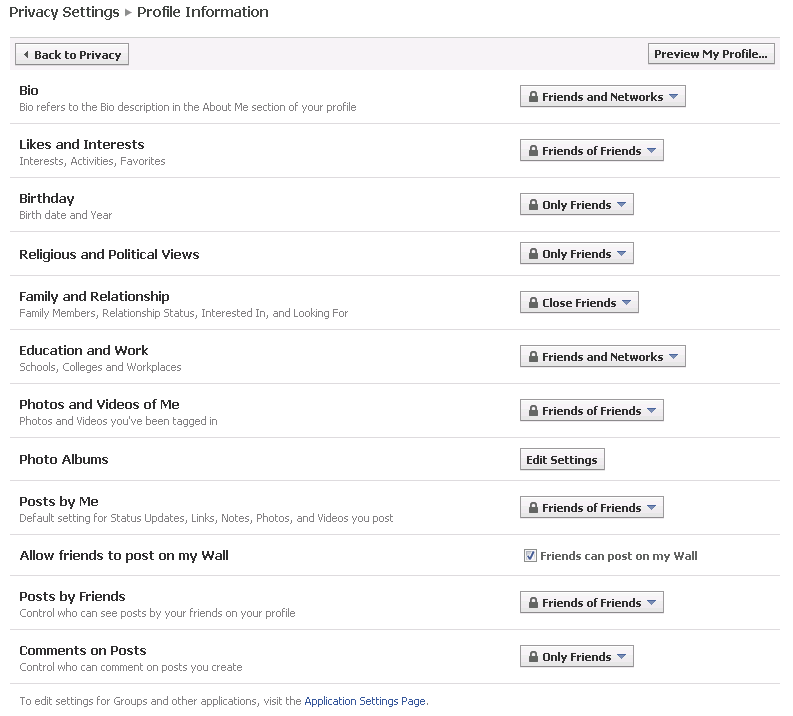
Profile Information
facebook profile privacy

The first on the list is your profile. Here you control who gets to see what on your information tab. Back to the previous topic of friend lists, you can now even restrict particular info to just a specific group of friends, which I found useful.

Another useful tool Facebook provides is the ability to preview your profile in the eyes of a random stranger or friend. The button to do so is near the upper right corner.

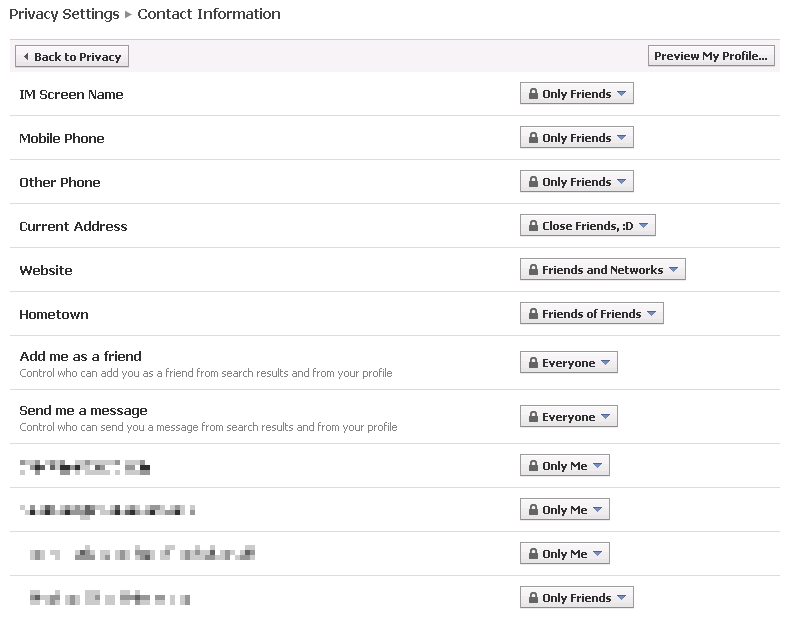
Contact Information
facebook contact privacy

Similarly this page allows you to control who gets to see the different ways they can contact you (via phone, email, IM, etc.) Also, I know pixelization isn’t the best way to hide my email, but if you can figure out my email address(es) from that screenshot, kudos to you!

Applications and Websites

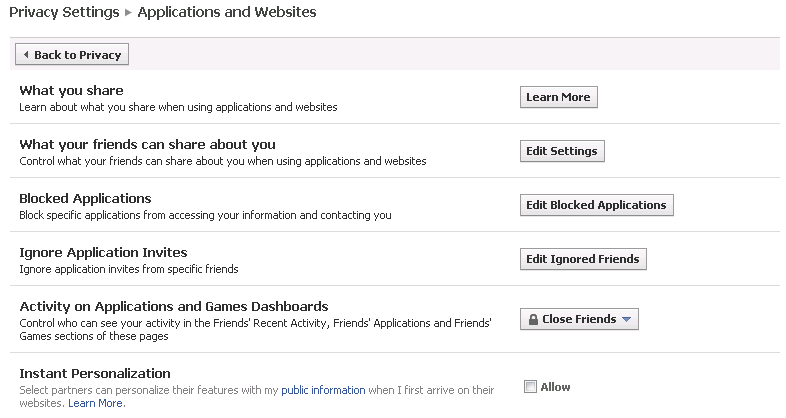
I’m actually not sure what Activity on Applications and Games Dashboards refers to, so I’ve restricted to just a small set of friends for now. The Instant Personalization is definitely new as I did not see it several days ago. I’m guessing this is part of their Open Graph feature they’ve just announced. I’ve decided to uncheck it until I fully understand what it does.

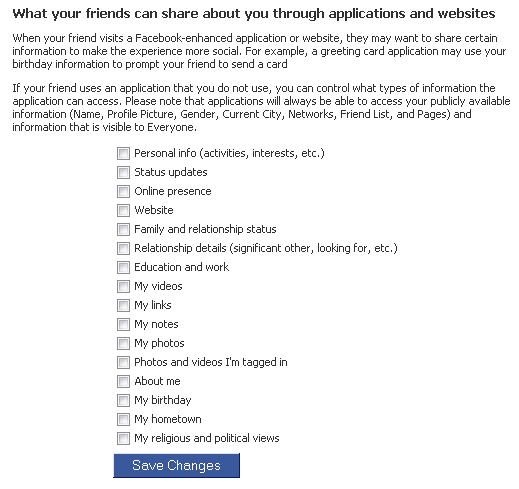
One particular interesting setting in this section is the What your friends can share about you. From the title, it sounds a bit harmless, but you have to understand that it’s what your friends share about you to websites and applications, and most of the time, they’re not informed what information they’re sharing about you. I’ve decided to uncheck everything on this page:
facebook friends share settings

Applications

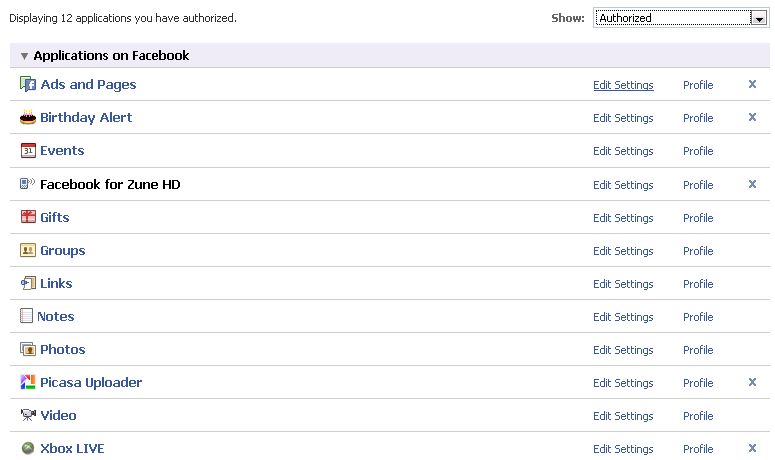
I’ve always disliked the fact that I had to reveal all my personal info and give up friends’ data when I wanted to use an application. Why does a game like Farmville need to know my birthday or where I live? So over the past week, I’ve gone and removed all the applications which I no longer use and the ones I decided I could live without. ReadWriteWeb has a good tutorial on how to remove applications: How to Delete Facebook Applications (and Why You Should)

facebook authorized apps

2.5 Year Old Email (Finally Read)

Just got the following read receipt:

Your message

        To: gmil****@gmail.com
        Subject: FS: ECS PT890T-A LGA775 Motherboard for $35 shipped
        Sent: 2/15/2007 4:31 PM

was read on 10/6/2009 8:51 PM.

Ungsunghero suggests it may have encountered the same fate as those recent missing UPS packages that have randomly showed up:

Unlocking the iPhone

So my dad’s been looking to get a smart phone so that he can purchase stocks over the web while he’s at work. Unfortunately the company he works at doesn’t provide internet access to employee’s computers.

Anyway, initially I was looking for mobile broadband solutions, where he could stick an USB or PC Card device into his laptop and just go online like he normally does. Unfortunately, all mobile broadband services at all the service providers I looked at (AT&T, T-Mobile, Sprint, Verizon) all charged $60/mo for about 5GB of bandwidth. Verizon did have a cheaper plan at $40/mo, but only came with 250MB.

I then started looking at tethering options. With tethering, the data plans for T-Mobile is only $20 extra per month. Only certain smart phones allow tethering and if you search online, you should be able to easily find a compilation like this: How To: Tether Your T-Mobile Smartphone as a Modem (2008 Edition)

I asked Derek for his advice in this regard and he mentioned that tethering to the phone is a bit cumbersome and definitely a disadvantage for my dad. He’s not technologically-impaired, but the fewer the components, the better for him. Derek suggested that I consider the iPhone. It unfortunately doesn’t support tethering (yet), but its screen is pretty big and simple to use. I decided to do some research.

I started looking at prices on eBay and then remember that Xyon might actually still have his old phone since he upgraded to the iPhone 3GS recently. I pinged him asking if he still had it and was willing to sell it or not. We reached an agreed upon price and I just needed to confirm with my dad if he was okay with the iPhone. He visited a cell phone store and gave the iPhone a whirl.

He liked it, but wished it had a stylus since he has big fingers. I looked into stylus for the iPhone. I recall the regular stylus don’t work since the iPhone uses human capacitance to detect fingers, it would have to be some special pen. A quick search resulted in the Pogo Stylus, which cost about $10. I went to DealExtreme and found they had several variations of iPhone stylus and I suggested my dad pick up one of these for $3.45 since it had the best reviews/ratings.

Anyway, I got the iPhone today and spent most of tonight trying to unlock it. The same sets of instructions for unlocking the 3.1 firmware were plaster across the web: Unlock iPhone 2G/3G with Firmware 3.1 on Windows. Unfortunately, I hit into the issue where it would be stuck in the “Preparing iPhone for restore” phase and eventually return a 1604 or 1600 error code. Researching this further, it looked like a common issue many people where hitting: How to Jailbreak Unlock iPhone 2G 3G OS 3.1 Custom Firmware.

I tried the suggested solution of getting iH8sn0w’s iREB which would apply some patch to ignore these errors, but never was able to get my screen to flash white/red. It would just remain off.

I gave up after several attempts. I also had issues flashing to an earlier version as iTunes 9.0 didn’t like iPhone firmwares before 3.1.

Before calling it a night, I decided to give it one more try. I installed iTunes 8.2.1 on my laptop (since I didn’t want to touch my existing iTunes installation on my main desktop) and decided to try to flash back to 3.0: Unlock/Jailbreak 3.0.x (iPhone 2G) Using RedSn0w – Windows. It actually worked without a hitch. I inserted my T-Mobile SIM card for testing and was able to make a call to my VoIP line.

Looks like it’s a success!

By the way, the iPhone should come with a paper clip. It took me forever to find something that I could actually stick into that tiny hole to pop out the SIM card holder. Needles and tacks didn’t quite work that well.

How to cancel a download in iTunes

I’m shocked at how difficult Apple makes it for the user to cancel downloads from iTunes. Being a freebie junkie, I am sometimes addicted to downloading iTunes freebies. That’s when I discovered just how hard it is to cancel a download in iTunes. I had queued up several large video clips to download which I’m no longer interested in:

iTunes Downloads

That adds up to about 4.8GB, bandwidth I don’t really feel like wasting given how hard ISPs are cracking down on high bandwidth users. So I tried to pause and delete the downloads. It appears to work, until I restart iTunes, which then immediately resumes downloading when I log back into the iTunes Music Store. I search online for solutions and found the following 2 threads:

Sorry, but you can’t yourself remove an item from your download queue. Contact the iTunes Store customer support department through the form linked from the bottom of their Download FAQ web page (I recommend that you use the form, not the link in your Purchase History as they advise; that’s not proven to be very reliable) and explain the problem to them. They may be able to clear the download queue for you.

Good luck.

So I just got off the phone with Apple tech support and the representative seemed very interested in this problem… He said there wasn’t any solution that he (or his associates) knew of, but that he’d bring it to attention at a meeting this afternoon. I referenced a number of forums to stress that many users have this problem.
So I guess we’ll have to wait and see if it becomes an update in a future version of iTunes.

Anyways, at this point I’m just going to let them download completely and then delete them. Sucks.

Apparently there is no way for me to do it myself and I have to contact customer support (either on the phone or through the webform). You can go to the contact form directly.

I can understand why they make it difficult, given the fact that iTunes doesn’t allow you to re-download and they want to make sure you actually did complete your download of any items you purchased (or in my case – obtained for free). However there should still be able way for me to stop/cancel any of my downloads, even if I have to go deep into my account and find that delete button. This is very unlike Apple, which typically tends to make great UI/UX. Then again, iTunes is a disaster waiting to happen. The only reason I even have it installed is because of my iPod Nano.

Another very annoying thing is that when you purchase an HD video, they FORCE you to download both SD and HD. Once again, either they need to allow me to suspend downloads (until I want to download it), or allow me to cancel the SD version from being downloaded at all. It’s just wasted bandwidth.

Here’s the email I sent to Apple:

I have 3 items in my download queue which apparently I can’t remove and have to submit this form according to: http://discussions.apple.com/thread.jspa?messageID=7804573

The 3 items are large (several gigs in total) and I’d prefer to not have to download them, but am annoyed by the fact that it keeps wanting to resume downloading whenever I start iTunes. I’m surprised there’s no way for me to delete it from the queue.

The 3 items are:
Order #***** – Truth In 24
Order #***** – Whap – Harper’s Island (SD)
Order #***** – Whap – Harper’s Island (HD)

I’d appreciate if you would remove these from my download queue.

I’ll post back to let you know if this actually works.

Update: Got a reply from iTunes Store Customer Support:

Dear *****,

Thanks for contacting iTunes Store Customer Support. My name is Blaine and I understand you would like some large files removed your download queue. I will be happy to help with this.

*****, please accept my sincere apologies for the frustration this download has caused. I took the liberty of removing the file(s) causing the issue from your download queue.

Thanks for being an iTunes Store Customer, *****!

Sincerely,

Blaine
iTunes Store Customer Support

w00t! Apple’s customer support is still top notch. 🙂

Firefox Corrupting Cookies and Session Info

One of the most annoying thing that has been happening for the past few months was that Firefox appears to corrupt my cookies/sessions. You know those “remember me” check boxes or when your bank asks if you want them to remember this computer so you don’t have to answer the security questions the next time you log in? Yeah, those would be pretty much corrupted after a day or 2. Every few days I would always have to re-sign into my most frequently visited sites and given that I only visit my bank websites once or twice a month, I always had to answer the security questions all over again.

When this happened, I confirmed that the cookie is indeed still there and hasn’t expired. I also made sure that I didn’t accidentally enable a Firefox setting that purged or invalidate all cookies after a certain amount of time.

At first I thought it was some add-on/extension causing the issue, since I do have a large array of extensions that I use and since extensions are all-powerful, it was very likely to be the case. However, even with all my add-ons disabled, I was still experiencing the issue.

After awhile, I just decided to live with it.

Fast forward a few months and I saw that Firefox had just released a new version (3.0.10) and wanted to play with it without waiting for it to automatically upgrade. I was shocked to find out I was still using 3.0.1… I’ve always thought Firefox would notify me when there’s a new update, which is the case if you’re running as an Administrator. However, I always run as a regular user (non-admin) and only elevate when I need higher access and more privileges. Can be a pain sometimes, but it’s not that bad once you get used to it. And over the course of a day, I probably need to elevate between 0 to 2 times.

So with Firefox never ever telling me to upgrade, I’ve been using 3.0.1 for who knows how long and 3.0.1 was apparently riddled with these annoying bugs.

After upgrading to 3.0.10, all my cookie corruption problems have since disappeared.